Free for Windows
Stop retyping what is already on your screen.
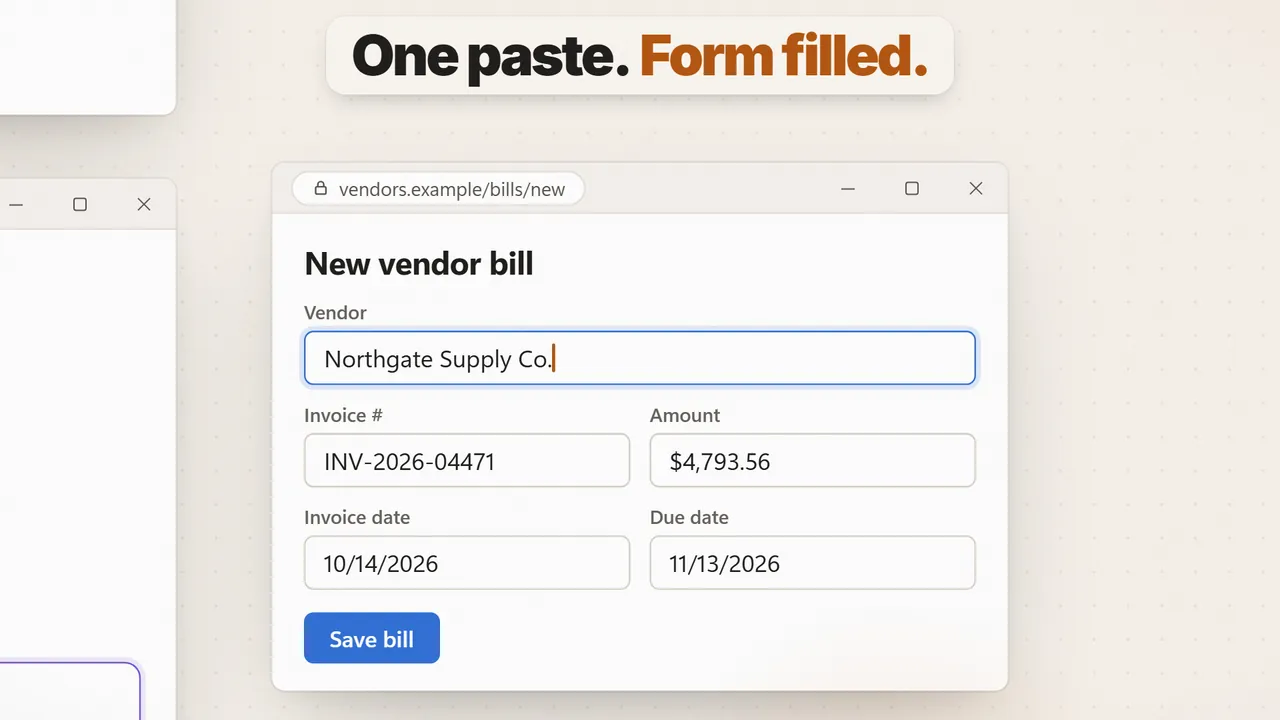
Fill a whole form from an email you copied. Grab the text off a video frame. Paste the thing you copied four copies ago. Ask AI mid-sentence without leaving the box you are typing in. KeptInFlow does it where your cursor already is, in every app on your PC, and the free plan does not expire.
If Windows SmartScreen asks about this new release, click More info → Run anyway. The installer is code-signed and verified.
Works for me. Flights land at 11:40 AM Eastern, so let's say noon.
Typed in any app. The answer lands in place.
Watch it (35 sec)
One free install replaces
- Snipping Tool
- Text Extractor
- Clipboard history
- Text expander
- Color picker
- ChatGPT tab
Works in every Windows app · no account · free forever
The free plan
Tools at your cursor.
Free for good.
Every one of these stays free after the 30-day trial ends. Each is a single shortcut away, and each works in Outlook, Word, Slack, your browser, your code editor: anywhere you can type or see.
Forms and clipboard
Smart paste
Fills the whole form in front of you from details you already have: an email you copied, a snip of a document, or your own saved details. You see every value before a character is written. See smart paste.
A clipboard that pastes like Alt+Tab
Hold the key, tap through your recent copies, release to paste the one you meant. Pin the clips you use daily and change the case on the way out. See the clipboard manager.
Verification codes, caught
Click into a code box and the code is already sitting under it, even when it landed in a window buried behind your browser. Tab takes it. See codes and autofill.
Clean paste
Paste as tidy plain text, with the formatting stripped and the spacing fixed. Instant, and no AI involved.
Capture
Snip that reads
Drag a region, click a window, or press F for the whole screen. Copy it as a picture or as text, mark it up, and find it later by the words that were on it. See screenshots and OCR.
Grab text off anything
Freeze the screen and turn all of it into words. Drag over text you cannot select where it is, in a video frame, a PDF or an error box, and Ctrl+C copies it.
The whole page, not the visible part
Capture a long page end to end. It scrolls the window for you and joins the frames into one tall image.
Color picker
Pick any pixel's color off the screen under a magnifier. Click to copy it, Shift to swap between hex and RGB.
Typing
Text expansions
Type a short abbreviation, get the full paragraph, in any app.
Type ;; to search all of them.
See text expansion.
Math where you type
Type a sum between two equals signs and the answer replaces it. No calculator to open, no number to copy back.
AutoCorrect everywhere
Common typos fixed as you type, in every app, not just Word. One Backspace undoes a fix. Switch it on in Settings.
Mouse gestures
Hold the right button and flick to move a window to the next monitor, minimize it, or maximize it. Every direction is yours to change.
AI and the rest of the PC
Ask where you are typing
End a line with @@ai, or press
Alt+Shift+I, and the answer is
written right there. Put a question between << >>
and the answer replaces it.
See AI at your cursor.
Rewrite the selection
Select text anywhere and run your favorite rewrite on it: shorter, friendlier, fixed. Alt+Shift+F cleans up the sentence you just typed.
Floating AI chats
Copy something twice quickly and a chat opens holding it. Chats float over your work, hide all at once, and come back when you want them.
A command palette for Windows
Launch an app, switch to a window, run a command, or search what you have kept, from one box. It learns which result you mean and leads with it next time.
Your phone
Send things across
Pair your phone once and send photos, files, links and text between it and your PC, in both directions, with nothing to install from an app store. See the phone companion.
Your phone as a trackpad
Use your phone as a trackpad and keyboard for the PC, and see the PC's screen on it. Free on your home Wi-Fi. See remote control.
Bring your own key
Your AI key works.
So does no key at all.
The AI tools on the free plan run on the model you choose. There is no account to make and no KeptInFlow server between you and your provider.
Your own key, unlimited
Paste a key from OpenAI, Anthropic, Google, xAI or OpenRouter. It works in every free tool with no cap from us, and you pay your provider directly for what you use.
A TypeSafe key, too
Have a Jev key? Paste it in and smart paste and the command palette use it, in every app on your PC, on the free plan. Bring your Jev key.
No key: 600 AI actions in the trial
Enough to feel smart paste and many chats before you decide whether you want a key. The 600 are for the whole 30-day trial and do not reset.
Or no cloud at all
Download the free on-device model, about 1.2 GB, and the AI answers on your own PC with no key and no connection. It is smaller and slower than the big online models.
Keys are kept in Windows' own password store. Every request the app makes gets a row in the Sent log: where it went and how big it was, never the text. The full list of what each feature reads is one click away. See what it watches
Free and Pro
Free helps you right now.
Pro remembers your day.
Every new install gets all of it for 30 days. When the trial ends you keep the free plan, and nothing you saved is locked away.
Free, forever
- Snip, grab text, scrolling capture, color picker
- Clipboard cycler, clean paste, text expansions, calculator
- Smart paste, verification codes, AutoCorrect, mouse gestures
- AI chats, rewrite, inline prompt, command palette
- Record your screen, with sound
- Dictation: 2,000 words a week
- Phone pairing, the Inbox, and the trackpad on your home Wi-Fi
- Your own AI key, or 100 AI actions a month on us
Pro, paid once
- Screen Memory: search anything you saw, jump back to it
- A work journal that writes each day up
- Meetings recorded with no bot, transcribed, summarized
- The Studio look, webcam and step-by-step guides
- Unlimited dictation, and voice commands
- Downloads organizer, follow-ups, routines
- Phone remote control from anywhere, and at the lock screen
- Timesheet, invoices, quotes, clients, expenses, Harvest import


Bill by the hour?
Your billable hours, written down for you.
Pro drafts your timesheet from what was on your screen, not a timer: each line named for the work, tagged to the client, priced. Client calls are recorded with no bot in the room, and the same hours become the invoice. It pays for itself the first time it catches an hour you would have written off.
No subscription required
Keep it free. Or pay once for Pro.
Try everything free for 30 days. Then keep the free plan forever, or go Pro.
The app is yours forever. The first 100 buyers get every update for life; after that, a license includes 1 year of updates. Keep the last version you got if you don't renew. This is not a stealth subscription. Details
Free trial
30 days
- Every feature for 30 days. The trial includes 600 AI actions with no key.
- Bring your own API key, or run a free on-device model
- Then keep the free plan forever, or go Pro
- No card up front. Nothing to cancel.
Free
$0 forever
- Snip, grab text, scrolling capture, color picker
- Clipboard cycler, clean paste, text expansions, calculator
- Smart paste, verification codes, AutoCorrect, mouse gestures
- AI chats, rewrite, inline prompt, command palette
- Record your screen, with sound
- Dictation: 2,000 words a week
- Pair your phone and send things across
100 AI actions a month on us. Want more? Use the free on-device model, your own AI key, or the AI plan.
Pro
$59 one-time
$59 for the first 100 buyers, then $79, then $99.
- Everything in Free, plus Screen Memory, the journal, meetings and billing
- The Studio look, webcam and step-by-step recordings
- Unlimited on-device dictation, no quota to run out of
- Own it forever, no subscription
- Every future update, for life
- 30-day refund, no questions asked
$59 is the founding price for the first 100 buyers, with lifetime updates. It ends when those seats sell out, not on a timer. The next 200 buyers pay $79, and after that the price is $99. Those two include one year of updates, renewable for $39/yr (or don't renew and keep what you have). Or get lifetime updates for $199. Every option is a single payment with the 30-day refund.
AI on Pro runs on the free on-device model, your own AI key, or 100 AI actions a month on us. The AI plan is separate.
AI Included
$12 a month
AI that just works. Nothing to set up.
- 5,000 fast AI actions a month
- 1,200 minutes of cloud dictation a month
- Every Pro feature included while it runs
- No key to get and no AI account to open
- Works on its own, or on top of a Pro license
It renews automatically at that price until you cancel. Cancel anytime from Manage subscription in the app, or at app.lemonsqueezy.com/my-orders.
AI that works the moment you subscribe. Or use your own AI key, or the free on-device model.
There are three ways to run the AI. The free on-device model answers on your own PC and costs nothing to run; it is smaller and slower than a cloud model. With your own AI key you pay the AI company directly for what you use. The $12/month AI plan is for people who want AI to just work: no key and nothing to set up, one bill, 5,000 fast AI actions a month, 1,200 minutes of cloud dictation, and every Pro feature included while it is active. On-device dictation and transcription are unlimited with Pro or the AI plan.
Before you ask
Questions, answered.
Is the free plan really free forever?
Yes. There is no card to give, no account to make, and no date it runs out. Every tool on this page under "the free plan" keeps working after the trial. The only thing with a monthly limit is AI with no key of your own: 100 actions a month after the trial ends. During the trial, you get 600. Add your own key and that limit goes away.
What happens when the 30-day trial ends?
You land on the free plan, not a wall. The Pro features stop making new things (Screen Memory stops recording, meetings stop recording, the timesheet stops drafting), but nothing you saved is taken from you. Journal days, meeting transcripts and captures stay readable, and invoices you already made can still be printed, sent and marked paid.
Do I need an API key?
No. During the trial you get 600 AI actions, then 100 a month on us when it ends. You can paste your own key from OpenAI, Anthropic, Google, xAI, or OpenRouter; KeptInFlow detects the provider and you pay them directly for what you use. A TypeSafe key works too. Or download a free on-device model, about 1.2 GB, and answer everything on your own computer with no key and no connection.
Do I need the AI plan?
No. It is optional, and Free and Pro work without it. The $12/month AI Included plan is for people who want AI to work with nothing to set up: no key, one bill, 5,000 fast AI actions a month, 1,200 minutes of cloud dictation, and every Pro feature unlocked while it is active. Without it you can use your own API key, where you pay the AI company directly for what you use, or the free on-device model, which costs nothing to run.
Where does my data go?
With your own key: from your machine directly to the AI provider you chose, nowhere else. No KeptInFlow server in the path and no account. Keys are stored in Windows' own password store. Optional on-device masking swaps emails, card numbers, and keys for placeholders before sending, and restores them in the answer.
AI actions during the trial (600) and the free plan (100 a month) work without a key, and those do pass through a KeptInFlow relay so we can talk to the model on your behalf. Detected personal details are always masked on that path, whatever your setting says. Add your own key and the relay leaves the picture.
Does it watch my screen?
Most free tools look only when you use them: a snip reads the part you chose, and the code catcher looks only after you click into a code box. Clipboard history is the exception: it keeps what you copy, on this PC. Screen Memory, the Pro feature that keeps a record of your day, starts when you finish setup during the trial, stays on this PC, and can be turned down or off in Settings. The full list of what each feature reads is on the what it watches page.
Is Pro a subscription?
No. Pro is a one-time license: the app is yours forever. The first 100 buyers get every update for life; after that, a license includes a year of updates, and renewing is optional ($39/yr). If you don't renew, you keep the last version you received. The optional $12/month AI Included plan is the one thing here that renews: it is for people who would rather not set up an AI key. It also unlocks Pro while it runs, but you never need it to use the app you bought.
Why does Windows warn about the installer?
SmartScreen warns about any installer it has not seen many times yet, and this one is new. It is code-signed, so the publisher name shows on the warning. Click More info, then Run anyway. The warning goes away on its own as more people install it. The download is about 18 MB, for Windows 10 and 11 (64-bit).
What about macOS?
Windows first: that's where the deepest integration is possible today. macOS is on the roadmap but not dated; the license will cover both when it arrives.
Stop retyping. Start free.
If Windows SmartScreen asks about this new release, click More info → Run anyway. The installer is code-signed and verified.